Silence the Chaos, Hear What Counts: A No-Nonsense Notification Audit for Your Phone
Here's a scenario that probably sounds familiar: your phone lights up fourteen times in an hour. A flash sale at a store you visited once. A like on a photo you posted three weeks ago. A reminder from a game you haven't opened since last spring. And somewhere buried in that avalanche — an actual text from your doctor's office about rescheduling your appointment. You missed it. Again.
This is the notification trap, and almost every smartphone user in America is caught in it. The fix isn't to turn everything off and go dark. It's to get intentional about which apps get your attention, when they get it, and how loudly they're allowed to demand it. Think of it as a home renovation project — you're not tearing the house down, you're just finally dealing with all the clutter.
Why Your Notification Setup Is Probably a Mess Right Now
When you install a new app, it almost always asks permission to send notifications. And honestly, in the moment — excited about the new app, just wanting to get started — most people tap "Allow" without a second thought. Multiply that by the 60, 80, or 100+ apps living on the average smartphone, and you've essentially handed out 80 keys to your front door.
App developers aren't neutral parties here, either. Notifications drive re-engagement, and re-engagement drives revenue. Every ping is a tiny tug on your sleeve designed to pull you back in. That's not cynicism — it's just the business model. Understanding that makes it easier to stop feeling guilty about turning things off.
Step One: Pull the Full List
Before you change anything, get a clear picture of what you're working with. On iPhone, head to Settings → Notifications and scroll through the full alphabetical list. On Android (settings may vary slightly by manufacturer), go to Settings → Apps, then look for notification controls within each app or use Settings → Notifications → App Notifications for a consolidated view.
You're going to see apps in there you forgot you installed. That's fine — that's the point. Make a rough mental note of three buckets:
- Critical: Banking apps, messaging apps, health apps, calendar alerts, anything tied to safety or finances.
- Useful but not urgent: Email, news apps, productivity tools, delivery trackers.
- Background noise: Social media, games, shopping apps, entertainment platforms.
Don't delete anything yet. Just sort.
Step Two: Configure by Category, Not by App
One of the most efficient ways to work through this is to think in categories rather than going app by app. Here's a practical breakdown:
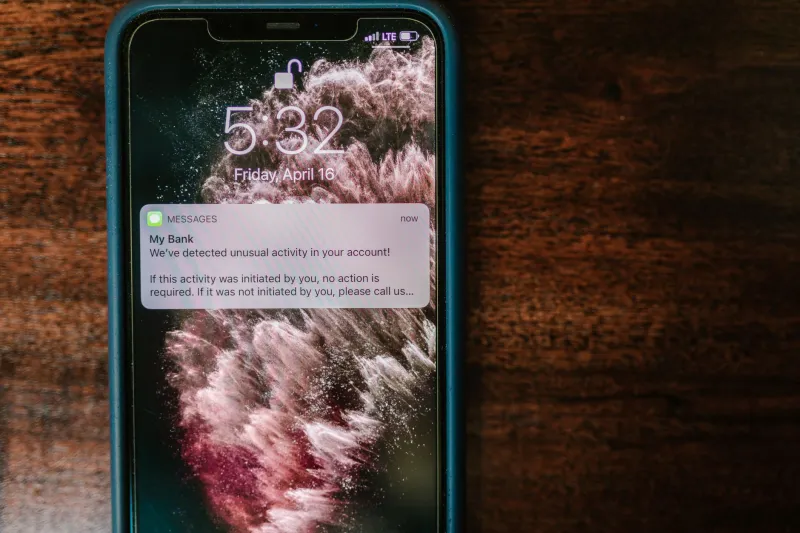
Banking and Financial Apps These should be on and loud — but only for what matters. Transaction alerts, fraud warnings, and low balance notifications? Yes. Marketing emails disguised as push notifications? Absolutely not. Dig into the in-app notification settings (not just your phone's system settings) because most banking apps let you get granular. Chase, Bank of America, and most major US banks have surprisingly robust controls if you look for them.
Messaging and Communication This is where people get tripped up. Most folks leave iMessage and WhatsApp fully enabled — which is right — but then also leave Slack, Teams, Discord, and three other chat apps pinging at full volume around the clock. Set work communication apps to time-based schedules if that option is available, or use Focus modes on iOS and Digital Wellbeing settings on Android to silence them outside of work hours.
Social Media Be ruthless here. Instagram, TikTok, X, Facebook — none of these need real-time notifications. Seriously. A like, a comment, a new follower — none of that is time-sensitive. Turn off badge counts too if you can handle it. The app will still be there when you choose to open it. That's the key shift: you decide when to check, not the algorithm.
News and Content Apps One or two breaking-news alerts from a trusted source — fine. But most news apps default to sending multiple notifications per day, and they're often tuned more toward engagement than genuine urgency. Pick one app, customize it to only alert you on major breaking stories, and mute the rest.
Shopping and Retail Apps These are almost universally safe to silence. Flash sales, "items left in your cart," birthday discounts — none of this requires a push notification. If you want deals, open the app when you're in the mood to shop. Don't let it drag you in on its schedule.
Health and Fitness Apps This category deserves some nuance. Medication reminders, hydration nudges, and scheduled workout prompts can genuinely be useful — but only if you actually act on them. If you've been dismissing your fitness app's 7am workout reminder for four months straight, it's not motivating you, it's just annoying you. Turn it off.
Step Three: Use Your Phone's Built-In Tools
Both iOS and Android have gotten significantly better at giving users control, and most people barely scratch the surface of what's available.
iOS Focus Modes let you build different notification profiles for different parts of your day — Work, Personal, Sleep, Do Not Disturb. You can specify exactly which apps and contacts can break through in each mode. It takes about 15 minutes to set up properly and it's genuinely one of the most underused features on iPhones.
Android's notification channels allow apps to send different types of notifications that you can control individually. For example, you might allow Gmail to send you alerts for direct messages but block its promotional email pings entirely — all within the same app.
Notification summaries on iOS batch low-priority alerts and deliver them at set times rather than constantly interrupting you. Turn this on for every app that isn't in your "Critical" bucket.
Step Four: Schedule a Re-Audit
Here's the thing about notification settings — they drift. Every time you update an app or install a new one, permissions can reset or new notification types get added. A quarterly check-in takes maybe ten minutes and keeps things from sliding back into chaos.
Set a recurring reminder (ironically, you'll want a notification for this) every three months to run back through your settings. It's the kind of digital hygiene that pays off every single day.
The Payoff Is Real
When you finally get your notification setup dialed in, something interesting happens: your phone starts feeling like a tool again instead of a leash. You stop flinching every time it buzzes. You actually see the messages that matter because they're no longer competing with 40 other alerts for your eyeballs.
The goal was never to go off the grid. It's to build a setup where your phone works for your life — not the other way around. A little time spent now means a lot less noise every single day going forward. That's a trade worth making.