Stop the Silent Drain: A Real-World Audit of the Apps Quietly Killing Your Phone
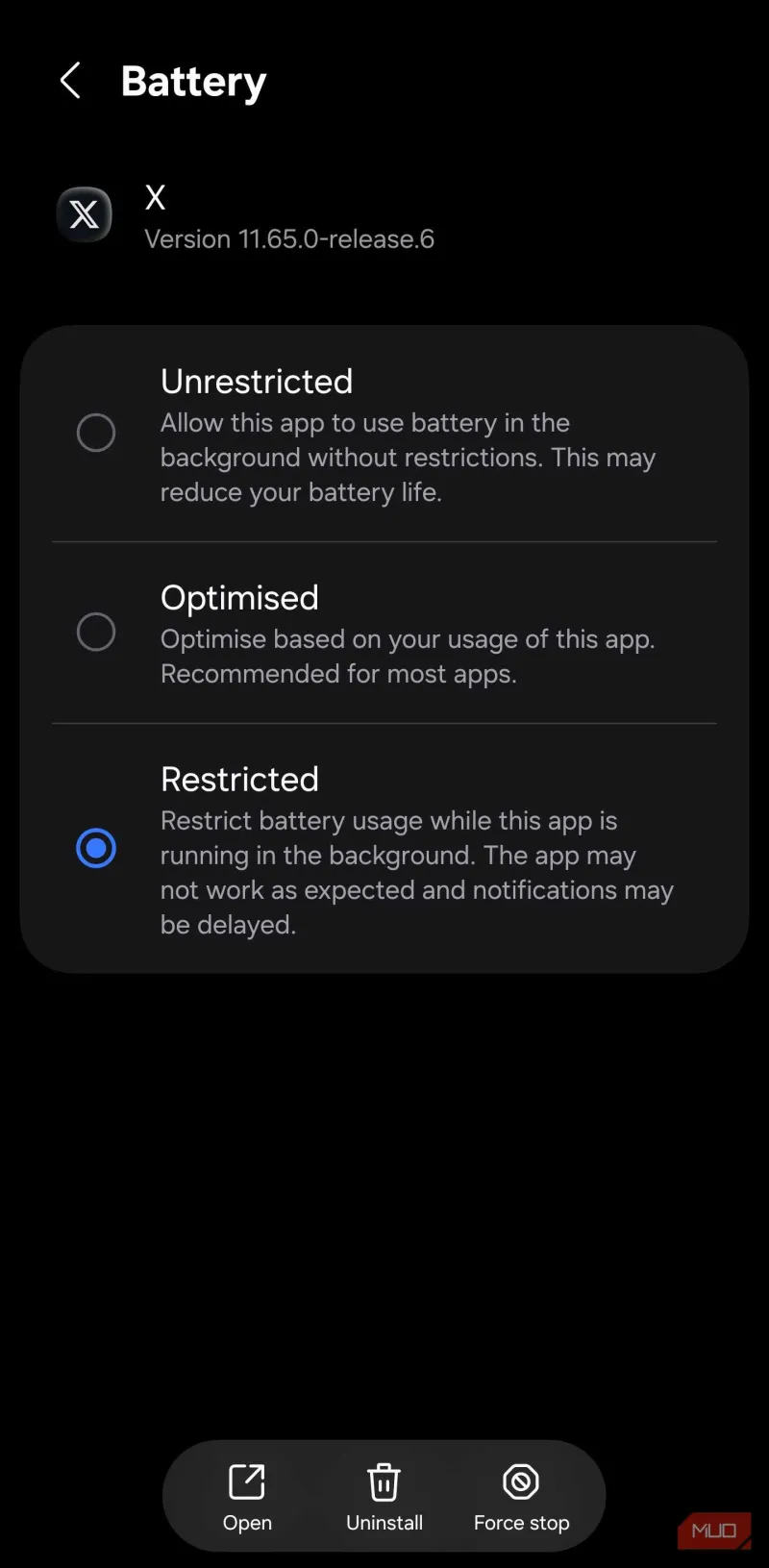
Photo: smartphone battery drain background apps settings screen, via static0.makeuseofimages.com
You plugged in your phone before bed. You woke up to a full charge. By lunch, you're hunting for an outlet. Sound familiar? You're not imagining it — and your battery probably isn't failing. The real problem is a whole ecosystem of apps running behind the scenes, doing things you never asked them to do, on your time and your dime.
We spent two weeks digging into the background behavior of the most popular apps on both iOS and Android. What we found was honestly a little alarming — and a lot fixable.
What "Background App Refresh" Actually Means
Most people have heard the term, but few understand what's really happening. When an app runs in the background, it can do several things: check for new notifications, sync data to the cloud, update its content feed, or ping location services. Some of this is genuinely useful — you want your navigation app to know where you are, and you probably want your email to load before you open it.
But here's the thing: most apps abuse this privilege. Social media platforms are among the worst offenders. Instagram, TikTok, and Facebook don't just check in occasionally — they refresh constantly, pre-loading content, updating ad data, and tracking your behavior even when the app is closed. On Android, you can actually watch this happen in real time through the Battery Usage screen in Settings.
On iPhones, head to Settings > Battery and tap "Show Activity" to see which apps are pulling the most juice. Then check Settings > General > Background App Refresh to see what's running freely. The list is usually longer than people expect.
The Usual Suspects (And a Few Surprises)
In our testing across a mix of Android and iPhone devices, a few categories of apps consistently showed up as the biggest resource hogs:
Social Media Apps — No surprise here. But the severity might be. In our tests, TikTok alone accounted for up to 18% of background battery usage on days when the app wasn't even actively opened. The algorithm needs to stay warm.
Navigation and Maps — Google Maps, Waze, and Apple Maps are location-hungry by design. What catches people off guard is that many third-party apps — food delivery, rideshare, even some retail apps — quietly request "always on" location access. That's a constant GPS drain.
News and Content Aggregators — Apps like Flipboard, Apple News, and even Spotify are constantly pre-fetching content. Audio apps in particular keep audio buffers warm in the background, which eats into both battery and RAM.
The Surprising One: Fitness Trackers — Health apps that sync with wearables (think Fitbit, Garmin Connect, or Samsung Health) are perpetually pinging Bluetooth, which is a surprisingly significant battery draw over the course of a day.
Permissions: The Other Half of the Problem
Battery drain is one issue. Data usage is another. And the two are often tied to the same root cause: over-permissioned apps.
When you install a free app and skip through the permission prompts, you're essentially handing over a set of keys to your device. Microphone access, camera access, contacts, location — these aren't just privacy concerns. They translate directly into background processing.
Here's a quick way to audit your permissions on both platforms:
- iPhone: Go to Settings > Privacy & Security and work through each category. Pay special attention to Location Services — anything set to "Always" that doesn't genuinely need it should be bumped down to "While Using."
- Android: Head to Settings > Apps, select an app, and tap Permissions. Newer Android versions also offer a Privacy Dashboard that shows a timeline of which apps accessed sensitive data and when.
A good rule of thumb: if you don't remember why an app needs a specific permission, it probably doesn't.
Your Phone Performance Audit Checklist
Here's the practical part. Run through this checklist once and you'll likely notice a difference in battery life within 24 hours.
Step 1: Kill Background Refresh for Non-Essential Apps Turn off background refresh for any app that doesn't need real-time updates. Games, shopping apps, and most utilities don't need this at all.
Step 2: Downgrade Location Permissions Review every app with location access. Most should be set to "While Using" or "Never." Only navigation, rideshare, and emergency apps need "Always."
Step 3: Audit Your Notifications Every notification wakes your screen and triggers processing. Turn off notifications for apps you don't urgently need to hear from. Your phone — and your focus — will thank you.
Step 4: Check Data Usage in the Background On iPhone: Settings > Cellular shows per-app data use. On Android: Settings > Network > Data Usage. Filter by background data. Anything using more than a few hundred MB in the background per month is worth investigating.
Step 5: Delete What You Don't Use This one sounds obvious, but most people have 20-30 apps they haven't opened in months. Dormant apps still get updated, still run background tasks, and still take up storage that slows down your device. Cut the dead weight.
Step 6: Restart Your Phone Weekly A simple restart clears RAM, kills zombie processes, and resets background tasks. It's the easiest performance boost you're probably skipping.
Don't Sacrifice Functionality — Be Strategic
The goal here isn't to strip your phone down to a brick. It's to make deliberate choices about what earns the right to run in the background. Your banking app? Let it refresh. Your favorite podcast player? Sure. That flashlight app you downloaded three years ago? Absolutely not.
Think of your phone's resources like a budget. Every background process is a line item. When you start treating them that way, you stop letting apps spend your battery on things you never asked for.
The modern smartphone is a genuinely powerful tool — but only when you're the one in charge of it. A 30-minute audit today could mean a phone that actually makes it through your day without a crisis charge at 4pm.
That's a trade worth making.